
IdentityMesh Admin UI
The Admin UI is the Angular-based administration portal for IdentityMesh. It’s installed by the MSI as an IIS site alongside the Admin API and is the primary operator interface — connector configuration, schedule management, role assignments, run history, and audit views.
Build
npm install
npx ng build --configuration production
Output: dist/now-ui-dashboard-pro-angular/
The production build produces hashed static files (JS bundles, CSS, assets) suitable for deployment to any web server.
Deployment
The Admin UI is a static single-page application (SPA). It must be served by a web server such as IIS, nginx, or any static file host.
MSI Install
When installed via the IdentityMesh MSI (AdminUI feature), files are placed
in C:\Program Files\IdentityMesh\ui\. The installer automatically:
- Creates an IIS site (
IdentityMesh Admin Portal) on the configured port (default 4200) if IIS is available. - Writes
assets/config.jsonwith the API URL chosen during install (defaulthttps://localhost:5100). - Creates a desktop shortcut to the Admin Portal.
Manual IIS Configuration
If IIS was not available during install, or for custom setups:
- Create a new IIS website pointing to
C:\Program Files\IdentityMesh\ui\. - Set the default document to
index.html. - The UI uses hash-based routing (
/#/), so no URL rewrite rules are needed. - Edit
assets/config.jsonif the API is on a different server.
API URL Configuration
The UI loads its API URL at runtime from assets/config.json. This file
is written automatically by the installer’s database step.
Runtime config (assets/config.json):
{
  "apiUrl": "https://localhost:5100"
}
If config.json is missing or has no apiUrl, the UI falls back to
relative URLs (same-origin requests). The UI loads this file before
it starts, so a change takes effect on the next full page load.
For separate-server deployments (UI and API on different machines),
edit config.json to point to the remote API:
{
  "apiUrl": "http://api-server.domain.com:5100"
}
Authentication
The UI uses Windows Integrated Authentication (Negotiate). All API requests send the browser’s Windows credentials. The IIS site hosting the UI must have Windows Authentication enabled.
Features
The Admin UI provides management interfaces for:
- Dashboard — Overview of connectors, sync runs, mesh object counts, and export queue pending/failed counts.
- Connectors — Create, edit, enable and disable connectors. Add
connector and each row’s Edit open the full-page connector
editor described in The connector editor.
The connector’s MS Objects tab lists what the connector has imported.
Its badge counts live rows, with the rows a confirming import marked
deleted and the rows an administrator isolated shown beside them
(“2359, 1205 deleted, 3 isolated”), and the State column says
Active, Isolated or Deleted for each row. Opening a row offers
Isolate, Release and Disconnect; see
isolate-disconnect.md. Delete Management Space Data refuses while the connector has isolated rows or open export holds until you type the connector’s name to confirm. - Schedules — Configure run groups, intervals, and import modes per connector.
- Join Rules — Define attribute matching rules for joining connector objects to mesh objects. MS Attribute and Mesh Attribute use dropdowns populated from connector attributes and mesh attribute schemas.
- Attribute Flow Rules — Configure inbound/outbound attribute mappings with confidence levels, optional transformation scripts, and optional precondition scripts. Source and target attribute fields use dropdowns.
- Projection Rules — Define outbound provisioning rules with attribute sub-rules. Mesh Object Type and Target Object Type use dropdowns populated from registered types and connector-imported object types.
- Object Types — Manage mesh object type definitions.
- Attribute Schemas — Define mesh attribute schemas with roles and
defaults. Object Type uses a dropdown populated from registered types
(with a
*universal option). - Mesh Objects — Browse and search mesh objects with attribute details,
relationships, export preview, and ad-hoc export trigger. The table
supports dynamic column selection via a “Columns” dropdown — users can
add or remove any core field or mesh attribute as a column. Default
visible columns: Anchor Value, displayName, Object Type, Created,
Updated. Column preferences are persisted in localStorage (a browser
that saved its columns on an earlier version keeps that set until the
user ticks Display Name). Clicking a row opens the object in a
slide-over drawer beside the list for triage; following a
relationship swaps the drawer to the related object. Every object
also has its own page at
/identity/mesh-objects/<id>with a breadcrumb and a Back link that restores the list’s filter and page, which is the link to paste into a ticket. Older?id=links redirect to it. The Connector Objects tab shows each linked connector object with a State column (Active, Isolated or Deleted) and, for administrators, Isolate, Release and Disconnect actions; open export holds appear in a Held exports list under the table, and an amber strip in the header names the connectors involved. Preview Export reports Isolated or Held for a connector it would not write to, and Export Now aimed at such a connector is refused. Seeisolate-disconnect.md. - Export Queue — View and manage the export queue with summary cards
(pending/in-progress/completed/failed/held), status filtering, and retry for
failed items. A Held item belongs to a connector object that an
administrator isolated, or to a mesh object whose exports to that
connector are held after a Disconnect; it is never picked up until the
isolation or the hold is released, and then it returns to Pending. See
isolate-disconnect.md. A Re-evaluate exports button beside Run Now (new in this release) re-evaluates a connector’s exports from the stored Management Space without running an import, and queues only genuine drift with the reasonManagementSpaceSweep. The card polls and reports what was scanned and queued, or what went wrong. Use it after changing a projection rule or flow when you do not want to wait for the next import. An optional schedule for the same sweep isIdentityMesh:ManagementSpaceExportSweepIntervalMinutes(default 0, off). - Connector Space — Browse management space objects per connector.
- Run History — View sync run logs with status, counts, and errors. The import Updated counter now counts any change to an object’s Management Space row, even when the mesh object itself did not change. Expect a one-off spike in Updated on the first import after upgrading. Scanned now moves while an import is still running: every connector reports its count after each page, so a long Workday or Graph import no longer sits at 0 for an hour and reads as hung. (A relay-routed import still reports when the agent returns.) The added/updated/deleted counters are still written when the import completes. A run with status Continuing is one chunk of a resumable Workday full sweep; see the Workday runbook.
- MeshComposer — Rule-based group composition engine. Create or
populate groups by defining criteria trees that match source mesh
objects. Supports inline preview with CSV export, publish target
overrides, and one-click evaluation. See
composer.mdfor details. - Relay Agents — Register, monitor, and manage remote relay agents. View agent status (Online/Offline), loaded connector types, machine name, version, and last heartbeat time. Assign connectors to relay agents for remote execution.
- Audit Log — Review object change audit trail.
- Operations — Health and reconciliation posture dashboard
(
/identity/operations): red/amber/green posture, license/grace status, one-click audit-chain verification, and orphan / dangling-management-space / run-vs-mesh drift listings. When any connector has isolated rows or open export holds, the connector table gains an Isolated / Held column with both counts. Seereconciliation.md. - Privacy / DSAR — Data-subject access and erasure requests
(right-to-be-forgotten). Look up a subject, preview affected
mesh objects, and record/execute an erasure. See
dsar-erasure.md. - Roles — Manage role assignments (to a user, or to a directory group whose members all hold the role; see Authentication → Role rows) and view current role/permission mappings. Admin-only.
- Secrets — Active provider per host, target provider, test, migrate,
switch and purge (
secrets.manage). Seesecrets-keyvault.md,secrets-vault.mdandsecrets-and-dpapi.md. - Script Editor — Edit transformation and precondition scripts for attribute flow and projection rules using an embedded code editor.
- Groups — Self-service group management (new in this release). See the section below.
- Notification bell — The navbar shows an inbox of the signed-in user’s notifications (group decisions, expiry warnings, owner escalations, provisioning errors). See the section below.
The connector editor
Add connector on the Connectors page, and Edit on any connector row, open a full page rather than a pop-up. The page has a header with the connector’s name, a rail of sections on the left, the section you are working on in the middle, and a footer with Test connection, Discard and Save. Nothing is saved until you press Save (Create connector on a new connector), except schedules, which save as you change them. If you leave the page with unsaved changes, the console asks before discarding them.
If your role can read connectors but not change them, the page opens read-only and Save is hidden.
Choose a type and a name
A new connector opens on Type & name. The page shows one card per connector type:
- The types IdentityMesh ships with: Active Directory, Entra ID, Okta, Workday, SQL Server and File. A type that is not available yet shows Coming Soon and cannot be picked.
- Every custom type that an engine or a relay agent has loaded. These cards are marked Custom and say who declared them. A custom connector appears here on its own once the host that runs it has loaded the connector’s file. A card marked No host online means the host that reported the type is not connected right now.
- A My connector is not listed link under the cards. It opens a box
where you type the connector type name exactly as the connector
reports it, then press Use this type. Use it when the host that
runs the connector is offline, so its card cannot appear. See
custom-connector.md.
Pick a card, then enter a Name. Under Run on, choose This server to run the connector on the IdentityMesh server, or one of the relay agents to run it there. The other sections stay locked until you pick a type. The type of an existing connector cannot be changed.
The rail
The rail on the left lists the sections for the connector’s type. Each entry shows a check mark when its section is complete, or a count of the open issues in it, such as a required field that is empty or a value that is not valid. Save stays disabled while there are open issues; hold the pointer over it to see which section is blocking. On a narrow screen the rail becomes a strip above the section.
The sections depend on the type:
| Type | Sections |
|---|---|
| Active Directory | Connection, Partitions, Object types & attributes |
| Entra ID | App registration, Object types |
| Okta | Connection |
| Workday | Connection, Attributes & paths, Import |
| SQL Server | Connection, Tables & object types |
| File | File & format |
| Custom connector that describes its settings | One section for each section the connector declares, in the connector’s order, then Object types |
| Custom connector that does not | Configuration, where you edit the settings as JSON |
Every type also has Type & name first, and Schedules and Advanced last.
A few of the sections need a word of explanation:
- Active Directory. Connection takes the forest and service account settings. Partitions lets you import from more than one domain of the same forest, each with its own server and search base. Object types & attributes picks the object types to import and the attributes of each, with Browse OUs and Discover attributes buttons.
- Entra ID. App registration has the setup instructions and the tenant and application fields. Object types picks which of User and Group import and which Graph properties each selects, with a Discover button that lists the Graph v1.0 schema without needing credentials. Changing a type’s list triggers a full re-import of that type on the next run, and the page says so.
- Workday. Connection shows only the fields for the
authentication mode you pick. Attributes & paths discovers and
edits the attributes to import. See
connector-workday.md. - SQL Server. Tables & object types discovers tables and views, previews rows, and defines the object types to import and export.
- File. File & format takes the path, with a Browse button, the format, and the objects to read and write. When the connector runs on a relay agent, the path is on that agent’s machine.
Test connection
Test connection sits at the left of the footer and shows its result beside it: a green sentence when the connector reached the source, a red one with the reason when it did not. While the form has open issues the footer says Fix the issues above to test instead. The button is not shown for a connector type that has no connection test. For Active Directory, Browse OUs and Discover attributes work for a connector that runs on the IdentityMesh server by connecting from that server, and for a connector on a relay agent by connecting from the agent.
Enabled
The Enabled switch in the header turns the connector on or off. You can change it before you create the connector and at any time after.
Save
Save checks the settings, then stores them. A connector that describes its settings is also asked to check them. If it rejects them, the page keeps you where you are and shows the connector’s message next to the field it concerns. A message that does not belong to any one field appears in a red box above the footer, headed The connector rejected this configuration. Correct the settings and press Save again. The page also refuses a configuration that is not a JSON object, naming the faulty path.
If the host that runs the connector cannot be reached, the page cannot ask the connector to check the settings. It shows the message it got and a Save without connector validation button. Pressing it saves the settings as they are. The save is written to the audit log as having skipped the connector’s own check, so you can see later which connectors were saved that way. Use it when you know the settings are right, and run Test connection once the host is back.
Discard puts the page back to the last saved values. On a new connector it returns you to the list.
What next
After Create connector succeeds, the page stays open on the new connector with a What next card above the sections:
- Add a schedule opens the Schedules section.
- Run a test import runs the connector once. It is available after the connector has a schedule.
- Open sync rules opens the rules for this connector.
Press Dismiss to hide the card.
Schedules
Schedules lists the connector’s run groups and intervals, and lets you add, edit, enable, disable and delete them. Each schedule has an import mode (Delta or Full), an interval in minutes and a run group. Schedule changes save immediately and are not part of the connector’s Save. On a new connector the section asks you to save the connector first.
Advanced
Advanced shows the connector’s whole configuration as JSON. It and the other sections are two views of the same settings: a change in one appears in the other as soon as the JSON is valid. Invalid JSON blocks Save and puts a count against Advanced in the rail, with the parser’s message under the box.
- Keys that no section shows are kept as they are, and a line under the box lists them. Use Advanced to set such a key.
- Reset to defaults puts back the connector type’s starting configuration.
- For a connector that describes its settings, a Declared settings panel lists every setting the connector declared, grouped as the connector groups them, with the file and version that declared them.
Secrets are never shown. After a save the configuration holds a reference to the stored secret, and a secret field shows a mask with a Change link. The stored value stays as it is unless you press Change and type a new one.
Settings → AI assistance
The Settings page has an AI assistance tab (visible with
roles.read; changing it needs roles.write) for the optional AI
features: suggested sync rules in the connector editor, and
explanations of failed runs and drifted connectors. It needs an
Enterprise license and is off until an administrator saves a provider
and key with the master Enabled switch on, tests the provider,
ticks the data agreement, then switches the features on in the
Features card and saves again. Clear key deletes the stored
key.
When it is on, the connector editor gains a Suggested rules entry in edit mode and a Suggest sync rules button, and failed runs gain an Explain button. See the AI assistance runbook for setup, the data sent, auditing and turning it off.
Settings → Email
The Settings page has an Email tab in the Integrations group
(visible with roles.read; saving, clearing a secret and Send
test need roles.write). It sets up how IdentityMesh sends email
for self-service group notifications, the workflow Send email step
and vault check-out approvals. Pick one provider (SMTP, Mailgun or
Microsoft 365), fill in its card, switch Send email on and save.
Secret fields show a mask when a secret is stored and are kept when
left blank. Use Send test to check the saved settings. See the
Email runbook for each provider’s setup.
Groups module
The /groups module is the end-user and administrator surface for self-service groups: owner-managed Active
Directory and Entra ID groups provisioned through the ordinary
export engine. It is new in this release; run the acceptance round
trips in that runbook against your own directory before opening it
to users.
| Page | Who | What it does |
|---|---|---|
| My Groups | owners (groups.own) | Create a group within policy; edit, renew, restore, delete or leave it; manage members and co-owners. |
| Browse and Join | everyone with groups.read | Find joinable groups and request to join. Open groups add you at once; owner-approval groups raise a request; closed groups refuse. |
| My Requests | groups.request | Your own pending and decided join requests; cancel a pending one. |
| Approvals | owners and groups.admin | Decide pending requests for groups you own. High-impact groups need a second decision from a different groups administrator. |
| Group Audit | groups.audit.read | Query the hash-chained group audit trail by group, user and date range; export it to CSV. |
| Configure → Groups | groups.admin | The install-wide policy (creator groups, allowed types, naming, expiry caps, target OUs, connectors) and a link to Settings → Email for notifications. |
| Configure → Groups → Onboard existing | groups.admin | Bring groups that already exist in Active Directory under self-service management without recreating them: pick an AD connector, tick groups, Preview what the first export would change, set owners and policy for the batch, and confirm. See the onboarding section of the groups runbook. |
Two things surprise first-time administrators. An empty creator-group list means only groups administrators can create, while an empty allowed-type list means all types are allowed. And a newly created group shows Pending until the provisioning sweep sees its directory link; if the export engine is paused it stays Pending, so check the export queue before assuming it failed.
Workflows
The /identity/workflows page (under Configure in the sidebar, needs
workflows.read) lets Enterprise administrators build and operate mesh workflows:
steps that run when an object enters or
leaves a Composer group.
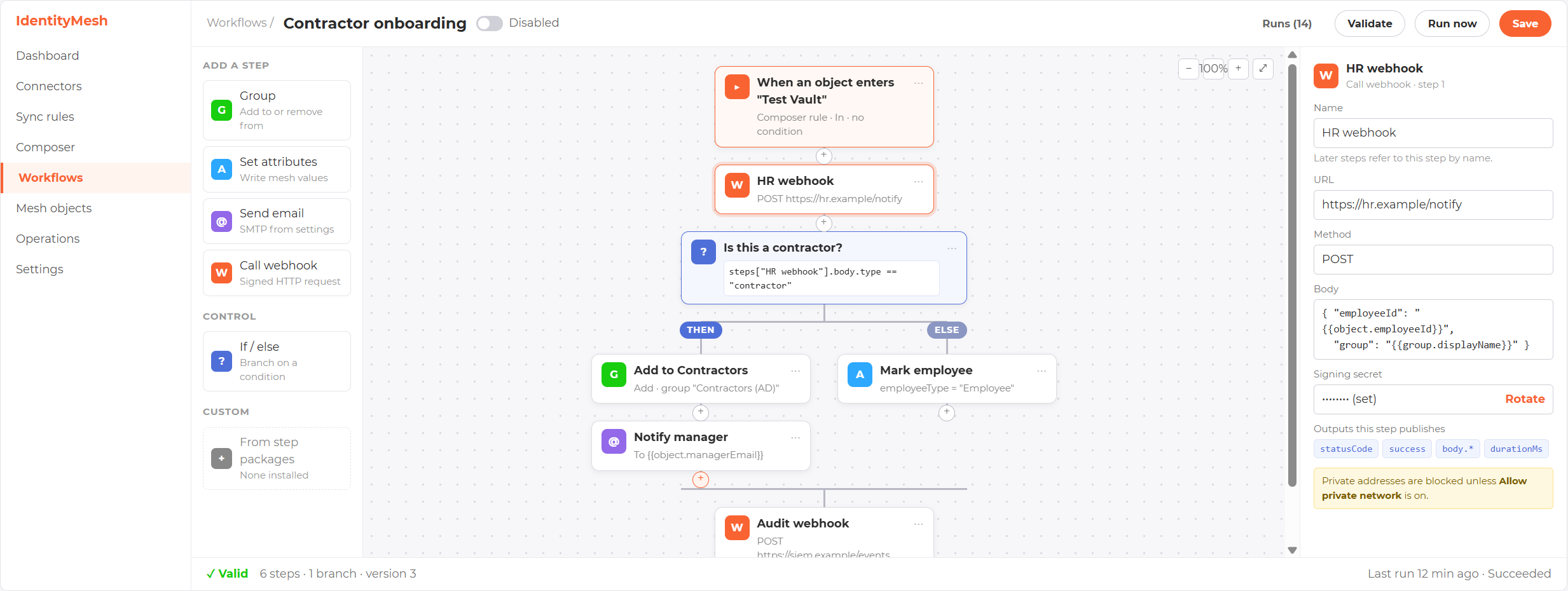
The workflow designer (preview rendering; some field names and expression syntax differ in the product)
| Tab | What it does |
|---|---|
| Workflows | Lists each workflow with its trigger, whether it is enabled, its last run and its failed count. New workflow and Edit open a full-page designer. The palette on the left offers Add a step (group, set attributes, send email, call a webhook), Control (If/else) and Custom (it reads “None installed” until custom steps exist); drag an item onto the canvas or between the THEN and ELSE lanes of a branch. The canvas in the middle starts with a sentence card for the trigger, such as When an object enters "<rule>" or When department changes on Person, followed by a card for each step. The trigger’s properties start with a Kind switch, Composer rule or Attribute change. For an attribute change you pick an Object type and add the Attributes to watch as chips; the suggestions come from the attributes known for that type, and you can type a name that has not appeared yet. Below the trigger, a Loop guards section sets Max chain depth and Max runs per object per hour for this workflow. See Attribute-change trigger. Every connection has a + button that opens a menu, so the whole workflow can be built from the keyboard. Each card has a ⋯ menu with Rename, Duplicate, Move and Delete. You can zoom, and undo and redo with Ctrl+Z and Ctrl+Y. The properties panel on the right shows the selected step’s settings, with an Available values picker that lists the object’s attributes, workflow values and the outputs of earlier steps only. A status bar shows ✓ Valid or the number of issues, the step counts and the last run. Validate and Save mark any problem as a badge on the step that has it. The first time you save a workflow that calls a webhook, the signing secret is shown once. The header has Validate, Run now (against an object, after you confirm; an attribute-change workflow asks for the pretend old and new values) and Save buttons, and a ⋯ menu that holds Delete workflow. Rotate signing secret is in the properties panel, under a step that uses the signing secret such as the webhook step. See Branches and Step outputs. |
| Runs | Filters by workflow, status, object and date. Opening a run shows the result of every attempt of every step, with Retry, Skip step and Cancel for users with workflows.execute. A banner offers Resume when workflows are paused, and another offers Release all or Cancel all for a workflow whose runs the burst guard held. |
The Operations page shows a Workflows card, and a mesh object’s
detail page lists that object’s workflow runs. Creating and editing
need workflows.write, and the whole feature needs the Enterprise tier.
Email steps send through the provider set under Settings → Email.
Notification bell
Every group decision, expiry warning, owner escalation and provisioning
error is written to the recipient’s in-portal inbox, which the bell in
the navbar opens. If email is set up under Settings →
Email, the same notice is also sent by email, and the delivery
outcome is recorded on the row. Reading the inbox needs
groups.notify.read, which every built-in role has.
Inbox rows are purged after IdentityMesh:Retention:NotificationsDays
(default 90), read or unread. The inbox is not an audit record; the
Group Audit page is. See audit-retention.md.
Routing
The UI uses hash-based routing (useHash: true) for SPA compatibility
without server-side URL rewriting. All routes are under /#/.
Authentication modes
The Admin UI supports two authentication modes, selected via the
runtime config file assets/config.json:
| Mode | When to use | How the user signs in |
|---|---|---|
negotiate (default) | On-prem / domain-joined deployments behind IIS or a reverse proxy that handles Windows Integrated Authentication. | Browser sends Kerberos / NTLM credentials transparently. |
jwt | Cloud / hybrid deployments where the customer wants Entra-issued bearer tokens. | MSAL redirect to Entra; user signs in with their Entra account. |
Negotiate mode (default)
No additional configuration required. The Admin API requires authentication on every endpoint against the Negotiate scheme; the UI sends the browser’s Windows credentials with each request and the proxy handles SPNEGO.
JWT / Entra mode
In assets/config.json (a runtime-loaded file the UI reads on
startup):
{
  "apiBaseUrl": "https://identitymesh-api.contoso.com",
  "auth": {
    "mode": "jwt",
    "tenantId": "<entra tenant guid>",
    "clientId": "<this-app's-Entra-app-registration-client-id>",
    "redirectUri": "https://identitymesh-ui.contoso.com/",
    "postLogoutRedirectUri": "https://identitymesh-ui.contoso.com/",
    "apiScope": "api://identitymesh-api/access_as_user",
    "multitenant": false
  }
}
Setup steps:
- Register a new app in Entra ID (separate from the Admin API
app). Type: Single-page application. Redirect URI: the UI’s
public URL (e.g.
https://identitymesh-ui.contoso.com/). - Under API permissions, grant delegated access to the
IdentityMesh API app’s
access_as_user(or equivalent) scope. - Copy the Application (client) ID into
auth.clientId. - Set
auth.modetojwtand fill the rest of the block.
When auth.multitenant is true, the UI uses the common
authority and Entra prompts users to choose their tenant. The
API side must independently widen Authentication:Jwt:Authority
or ValidateIssuer to accept multi-tenant tokens; until that
happens, multi-tenant in the UI alone won’t pass API-side
validation.
The UI automatically attaches the user’s access
token to outbound calls to apiBaseUrl.
Switching modes
Mode is determined at startup. To change modes:
- Update
assets/config.jsonon the deployed UI host. - Hard-refresh the browser (or close + reopen the tab) so the updated config is fetched.
The Admin API can run with both schemes simultaneously (the
SmartAuth policy scheme routes per request based on Authorization Bearer header presence). A site running JWT-mode UI will work
against an API configured for either Negotiate or JWT (or both).
Localization (i18n)
The UI uses Angular’s built-in @angular/localize for translation.
Phase 1 ships the build pipeline + a small set of representative
strings extracted (sign-in flow, navbar). Most other strings remain
hard-coded English; they are extracted progressively as
features ship.
Supported locales
| Locale | File |
|---|---|
en-US (source) | src/locale/messages.xlf |
fr-FR | src/locale/messages.fr.xlf (stub — copy of source pending real translations) |
Add additional locales by:
- Copying
src/locale/messages.xlftosrc/locale/messages.<locale>.xlf. - Translating the
<source>strings into<target>elements. - Registering the locale in
angular.jsonunderprojects.now-ui-dashboard-pro-angular.i18n.locales.
Building a localized bundle
npx ng build --configuration=production --localizeProduces a per-locale subdirectory under
dist/now-ui-dashboard-pro-angular/ (one for en-US, one for
fr-FR, etc.). Serve each locale from its own URL prefix via
your web server’s URL rewriting rules.
Adding new translatable strings
Mark them in templates with the i18n attribute and a unique
identifier:
<h2 i18n="@@dashboard.title">Dashboard</h2>
<button i18n="@@dashboard.refreshButton" aria-label="Refresh"
        i18n-aria-label="@@dashboard.refreshAriaLabel">
  Refresh
</button>
Re-run npx ng extract-i18n --output-path=src/locale --format=xlf
to refresh messages.xlf. Translators add the new
<trans-unit> entries to each per-locale file.