
Mesh workflows
A mesh workflow reacts to a change. It starts either when an object joins or leaves a Composer group, or when chosen attributes of an object change. The workflow can then send an email, call a webhook, set attributes on the object, or add or remove the object from another group. Workflows are an Enterprise feature.
This runbook covers what a workflow is, the four steps and their fields, branches, step outputs, how a webhook is signed and verified, what happens when a step fails, and how to operate runs from the console.
What a workflow is
A workflow has four parts.
| Part | What it is |
|---|---|
| Trigger | One of two kinds. A Composer rule trigger has a rule and a direction: In fires when an object enters the rule’s group, Out fires when an object leaves it. An Attribute change trigger has an object type and one or more attributes, and fires when any of those attributes changes on an object of that type. |
| Condition | Optional. An expression in the rules language that is evaluated against the object. If it is false, the run ends as Skipped and no step runs. |
| Steps | An ordered list of one or more of the four step types below, optionally split by If/else branches. Steps run one after another. |
| Enabled | A disabled workflow matches nothing. Runs already in flight finish. |
For a Composer rule trigger, the Composer group is the set, and the workflow reacts to the object moving into or out of that set. Every membership change the Composer makes is recorded, whether it comes from an import, from the Evaluate button on a rule, or from the engine’s periodic reconciliation pass. Each recorded change produces one run for each enabled workflow that matches it, and each change is handled exactly once.
Two kinds of membership change do not trigger workflows. Deleting a Composer rule removes its group and edges without recording any transitions. Erasing an object and orphan cleanup also record nothing.
Membership added or removed by a workflow’s own group step is not a Composer change either, so workflows do not chain through group membership. They can chain only through attribute writes that change a Composer rule’s criteria (see Loops and bursts).
Which changes a workflow reacts to
A workflow only reacts to changes that are recent and that happened after it was enabled.
- A change older than 24 hours is never acted on. A workflow created today does not fire for last week’s joiners, and a workflow re-enabled after a month does not replay the month.
- A change that happened before the workflow was created, or before it was last enabled, never matches.
- If workflows are paused or the worker is down for a weekend, it catches up afterwards with only the last day of changes.
If the Composer rule that a workflow points at is deleted, the workflow is disabled and the editor shows that its trigger is missing. The workflow itself is kept. An attribute-change workflow has no such dependency, and it stays enabled if its object type is later removed in Settings. It then starts no runs for that type. An enabled workflow cannot be saved until a valid type is chosen (“Object type not found”); saving it disabled is allowed and shows a warning, so you can switch it off or park it.
Attribute-change trigger
An attribute-change workflow names an object type, such as Person, and
one or more attributes, such as department and manager. It runs
once for each change to any of those attributes on an object of that
type. A change that touches several watched attributes at once produces
one run that lists all of them.
What counts as a change. A change is any of the following, judged on the value the mesh shows for the attribute:
- A first value: the attribute had no value and now has one.
- A different value.
- A cleared value: the attribute had a value and now has none.
A second source confirming the value the mesh already shows is not a change. If one source drops its copy while another still holds the same value, the attribute has not changed either. Writes that leave the value as it was record nothing, so a step that sets an attribute to the value it already has does not start further runs.
Every writer counts. It does not matter how the value changed. The following all produce changes that attribute workflows can react to:
- Imports from connectors, including the first import of a new object.
- A workflow’s own Set attributes step.
- Self-service group edits.
- The Composer creating a group.
- The uniqueness re-resolver giving an attribute a new value.
The run records where the change came from, such as an import from a named connector, another workflow, or the person who edited the group.
Sensitive attributes are reported by name only. If an attribute is
classified above Internal sensitivity, the run records that it changed
but not the old or new value. Any attribute whose name contains
“password” or “pwd” is treated the same way, so pwdLastSet shows no
values. Wherever a value would appear, in a run, an email or a
webhook, you see <sensitive> or a null instead. You can still watch a
sensitive attribute; the designer warns you so that you know the
values stay hidden. Very long values are cut at 1,000 characters.
A first import can start many runs. When you enable an attribute-change workflow and a connector then imports many new objects for the first time, each new object counts as a first value and so starts a run. If the workflow sees more events than the burst threshold within the burst window (500 within 10 minutes by default), its runs are created as Held and nothing fires until you release or cancel them. See Loops and bursts.
Editing the trigger re-arms the workflow. Changes to attributes are recorded whether or not any workflow watches them, and changes older than 24 hours are never acted on. So when you change a workflow’s trigger (its kind, object type, watched attributes, Composer rule or direction), the workflow starts again from that moment and sees only changes that happen after you save. It is not back-filled with earlier changes, so widening a trigger never replays the past day. Editing the name, condition, steps or loop guards does not re-arm it.
An attribute run always executes with the old and new values it recorded, even if the attribute has changed again since. The later change has its own run, queued behind it for the same object. This is different from a Composer rule run, which is cancelled when its transition no longer holds.
Trigger values
Every run, whatever its trigger, can read the following values in the condition, in step fields and in email templates. The Available values picker in the designer lists them with the right spelling.
| Value | Composer rule run | Attribute-change run |
|---|---|---|
trigger.kind | composerTransition | attributeChange |
trigger.origin | What caused the membership change: Import, Evaluate, Reconcile or Workflow | What wrote the value: Import, Workflow, SelfService, Composer, Uniqueness or Manual (a Run now) |
trigger.originName | Empty | A connector name, a workflow name or a user name |
trigger.occurredUtc | When the change happened | When the change happened |
trigger.attributes | Not set | The watched attributes that changed, joined with ;, in the order the workflow lists them |
trigger.changed.<name>.old | Not set | The previous value, or empty for a first value |
trigger.changed.<name>.new | Not set | The new value, or empty when cleared |
trigger.changed.<name>.kind | Not set | Added, Changed or Removed |
<name> is the attribute’s name as the workflow spells it. Sensitive
attributes give <sensitive> for old and new. For an attribute-change
run the group values (workflow.transition, workflow.groupId,
workflow.groupDisplayName and group.*) are not set.
An email template can describe the change:
{{displayName}}'s manager changed from
{{trigger.changed.manager.old}} → {{trigger.changed.manager.new}}.
A condition can limit the workflow to some of the changes:
Equals(attr("trigger.changed.department.new"), "Finance")An attribute name that contains characters other than letters, digits
and underscores, such as ms-ds-x, cannot be used as a {{…}} token.
Reach it with attr("trigger.changed.ms-ds-x.new") instead.
Order of execution and the “still holds” rule
Runs for the same object execute one at a time, in the order they were created. A run does not start while an older run for the same object is queued, running or waiting to retry.
Before every attempt, a Composer rule run checks that its transition still holds. Attribute-change runs skip this check. See the section on the attribute-change trigger. For an In run the object must still be in the trigger group. For an Out run it must still be out of it. If not, the run ends as Cancelled with the reason “transition superseded”. This stops a delayed “removed” run from undoing the “added” run that followed it.
If the object no longer exists when a run is reached, the run ends as Cancelled with the reason “object no longer exists”.
Steps in a run execute in the order listed. A later step never runs while an earlier one is failing or waiting to retry.
The four steps
A fifth step, Run PowerShell script, runs your own script and is described after the webhook step. It is delivered as a step package, like the custom steps you can add yourself. See custom steps.
Add or remove from a group
Fields: Action (Add or Remove) and the group. The group can be any group in the mesh: a Composer group, a self-service group or an imported one.
- Add records a membership that belongs to the workflow, even if the object is already a member through another source. Adding what is already there is a success.
- Remove removes only the membership that a workflow added. It never removes a Composer, self-service or imported membership. Nothing to remove is a success.
- Both queue the group for export, so the change reaches a directory
when an outbound rule flows the group’s
memberattribute. The mesh membership is written and visible in the console immediately. If no connector exportsmemberfor that group, the step still succeeds and its output says so. - Adding to a high-impact self-service group does not go through the approval queue. The approval queue is for people requesting access, and a workflow is authored by an administrator. The editor warns when you pick such a group.
Set attributes
Fields: a list of attribute name and value pairs. The value is
an expression in the rules language, so a literal text value must be
quoted, for example "Contractor". An expression that yields nothing
clears the attribute.
- The value replaces the attribute’s value on every source that holds it, so one value per attribute is what the export sees.
- The next import of the object wins. If an inbound flow rule feeds the same attribute, the next import that carries the object writes the source’s value back over the workflow’s. The editor warns when the attribute is fed by an inbound flow.
- Attributes classified above Internal sensitivity are refused when you save the workflow. A workflow never writes credentials. See attribute sensitivity.
- After the write, the object is queued for export and the Composer re-evaluates it. If that changes its Composer membership, the change can trigger another workflow.
- The change is recorded in the object’s audit trail with the workflow as its source.
Send email
Fields: To (one or more recipients), Subject and Body.
- Each recipient is an expression in the rules language. A bare address
such as
helpdesk@example.comis accepted, as is an attribute lookup such asattr("mail"), or any expression that yields one or more;-separated addresses. - Subject and body can contain tokens in double braces, replaced when the email is sent:
| Token | Replaced with |
|---|---|
{{workflow.name}} | The workflow’s name. |
{{workflow.transition}} | In or Out. |
{{group.displayName}} | The trigger group’s display name. |
{{object.id}} | The mesh object’s id. |
{{attributeName}} | The object’s attribute of that name, for example {{displayName}}. |
- An attribute classified above Internal sensitivity renders as
<sensitive>instead of its value. - Email is sent through the provider configured under Settings → Email. If email is switched off or has no From address, the step fails with “Email is not configured; Settings → Email” and does not retry, because retrying cannot fix it. A step with no resolvable recipient also fails without retrying.
- Each recipient is sent a separate message. Connection errors, timeouts and temporary provider errors are retried on the schedule below.
Call a webhook
Fields: URL, Attributes to send, Allow private network addresses, and an optional static header.
- The URL must use HTTPS.
- Attributes to send is a list of attribute names to include in the
body. The default is
displayNameandobjectType. Attributes classified above Internal sensitivity are never sent, whatever the list says. - The optional static header (for example
Authorization) lets you present a bearer token to the receiver. Its value is set from the step’s properties, stored as a secret, and shown only as a mask with a Change button. - Redirects are not followed. A 3xx answer fails the step.
- Each attempt has 30 seconds to complete.
Private networks
By default a webhook cannot reach loopback, link-local, private (RFC 1918) or unique-local addresses. The host name is resolved and every address is checked on every attempt, so a later DNS change cannot slip past the check made when you saved. A literal IP address in the URL is checked the same way. Tick Allow private network addresses on the step to send to an internal receiver.
Request
IdentityMesh sends an HTTP POST with Content-Type: application/json
and this body:
{
  "event": {
    "runId": "6f0c3b1e-0a44-4f5e-9c7a-1d2e3f405162",
    "workflowId": "b2a91c55-77d3-4c10-8f0e-5a6b7c8d9e01",
    "workflowName": "Joiner onboarding",
    "transition": "In",
    "occurredUtc": "2026-10-25T14:03:11.0000000Z",
    "group": { "id": "9d1e2f30-4a5b-6c7d-8e9f-0a1b2c3d4e5f", "displayName": "All employees" },
    "trigger": {
      "kind": "composerTransition",
      "origin": "Import",
      "originName": null,
      "occurredUtc": "2026-10-25T14:03:11.0000000Z",
      "attributes": [],
      "changes": []
    }
  },
  "object": {
    "id": "0c1d2e3f-4a5b-6c7d-8e9f-a0b1c2d3e4f5",
    "objectType": "person",
    "attributes": { "displayName": "Ada Lovelace" }
  }
}
transition is In or Out. occurredUtc is when the membership
change happened.
The trigger object describes what started the run. kind is
composerTransition or attributeChange. origin and originName say
what caused it, and attributes and changes are empty for a Composer
rule run. For an attribute-change run, transition and group are
null, attributes lists the watched attributes that changed, and
changes has one entry for each:
"trigger": {
  "kind": "attributeChange",
  "origin": "Import",
  "originName": "Workday",
  "occurredUtc": "2026-10-25T14:03:11.0000000Z",
  "attributes": ["department", "manager"],
  "changes": [
    { "name": "department", "kind": "Changed", "old": "Finance", "new": "Sales", "sensitive": false },
    { "name": "manager", "kind": "Added", "old": null, "new": "ada.lovelace", "sensitive": false }
  ]
}
Every entry carries sensitive. A sensitive attribute appears with
"old": null, "new": null and "sensitive": true.
| Header | Value |
|---|---|
X-IdentityMesh-Delivery | {runId}/{stepIndex}/{attempt}. The same delivery can arrive more than once; use this to deduplicate. |
X-IdentityMesh-Timestamp | The send time as Unix seconds. |
X-IdentityMesh-Signature | sha256= followed by the lowercase hex HMAC-SHA256 of the timestamp, a full stop and the raw request body, keyed with the workflow’s secret. |
The signed text is timestamp + "." + body, using the exact bytes
received. Parse the JSON only after the signature has been verified.
Signing secret
Each workflow has one signing secret, shared by all its webhook steps. It is created the first time you save a workflow that calls a webhook, and it is shown once, right after that save. It cannot be read again, so copy it into the receiver at once. You can replace it later with Rotate signing secret, which also shows the new value once. Rotating replaces the secret immediately; update the receiver at the same time. If the console reports that the secret cannot be read on this host, rotate it again.
Verifying a delivery
This Python function verifies a delivery. It rejects deliveries older than five minutes to limit replay, and compares in constant time.
import hashlib, hmac, time

def verify(secret: bytes, headers: dict, body: bytes, max_age=300) -> bool:
    ts = headers["X-IdentityMesh-Timestamp"]
    if abs(time.time() - int(ts)) > max_age:
        return False
    signed = ts.encode() + b"." + body
    expected = "sha256=" + hmac.new(secret, signed, hashlib.sha256).hexdigest()
    return hmac.compare_digest(expected, headers["X-IdentityMesh-Signature"])
The secret is the value shown when it was generated. Use it exactly as displayed, with its text UTF-8 encoded to bytes.
How the answer is read
| Answer | Result |
|---|---|
| 2xx | Success. |
| 408, 425, 429, 5xx, or a network error or timeout | Retried on the schedule below. |
| Any other 4xx | Fails without retrying. |
| 3xx | Fails without retrying; redirects are not followed. |
Answer quickly with a 2xx and do the real work afterwards. A slow receiver that times out is retried, and the receiver then sees the same delivery again.
Run a PowerShell script
This step runs a PowerShell script on the Admin API host, as the Admin API service account, with values taken from the object that started the run. Use it when a task needs a command that IdentityMesh does not have a step for, such as giving a new account a mailbox. It appears in the designer palette as Run PowerShell script.
The step is itself a step package. It is installed in the Steps folder
beside the Admin API (C:\Program Files\IdentityMesh\api\Steps\), it is
signed, and it is listed in the Step packages table under
Settings → Workflows like any package you add yourself. That table
is a good first look at how packages are shown. If Run PowerShell
script is missing from the designer palette, open the table and check
the PowerShell package: its status and, if it is rejected, the reason
shown under it say what to fix.
A saved Run PowerShell script step on an install that does not have the package fails its runs as an unknown step type, until the package is deployed.
Fields:
| Field | What it does |
|---|---|
| Script source | File (default) runs a script from the scripts folder. Inline runs script text typed into the step. |
| Script file | For File: the file name only, such as Enable-HybridMailbox.ps1. No folders, drive letters or ... The file must exist in the scripts folder when you save, and the error lists the files it did find. |
| Script | For Inline: the script text, up to 64 KB, in a code-sized box. |
| PowerShell version | WindowsPowerShell (default) runs powershell.exe, version 5.1. PowerShell7 runs pwsh.exe, which must be installed and on the PATH of the host; saving fails with “pwsh.exe was not found on the host” otherwise. Exchange tools are most reliable on 5.1. |
| Script parameters | A list of script parameter names, each with an expression. |
| Run-as user name and Run-as password | Optional. Passed to the script as its -Credential parameter. |
| Success exit codes | Comma-separated. Default 0. |
| Exit codes that fail without retry | Comma-separated. Empty by default. |
| Timeout | Seconds the script may run, from 5 to 3600. Default 300. |
File and inline scripts
A File script lives in the scripts folder, by default
C:\ProgramData\IdentityMesh\Scripts. Only administrators can write
there. An administrator copies each script into the folder by hand; the
console never uploads scripts. The service account can read and run
them but not change them.
An Inline script is stored in the workflow, so anyone who can edit workflows can change what runs as the service account. For that reason inline scripts are off until an administrator turns on Allow inline scripts under Settings → Workflows. With the switch off, a saved inline step fails validation with “Inline scripts are disabled. An administrator can enable them under Settings → Workflows.” and a run that reaches one fails without retrying, with the same message. Turning the switch off does not delete saved workflows. It only stops those steps validating and running.
Parameters
Each entry in Script parameters names one of the script’s
parameters and gives an expression in the rules language. The step
evaluates the expression against the object and passes the result to
the script as text, the same way Set attributes renders a value. A
literal value is a quoted string, such as "contoso.mail.onmicrosoft.com",
and an attribute is attr("sAMAccountName").
- A missing value arrives as an empty string. A multi-valued attribute
arrives as its values joined with
;. - A parameter name starts with a letter or underscore and contains
letters, digits and underscores. Names are unique, ignoring case.
CredentialandIdentityMeshUserNameare reserved. - Sensitive attributes are passed as they are if you map them. That is your choice to make. They are masked in logs.
The script declares matching param() entries as usual. A parameter
the script does not declare fails the run, the same as it would on a
command line.
The credential
When you set both a Run-as user name and a Run-as password, the
script receives a [PSCredential] in its -Credential parameter, so
the script must declare one. The password is stored as a secret on the
step and shown only as a mask. It is handed to the script’s process
over its input stream. It is never on the command line, in an
environment variable or in a file, and any appearance of it in the
captured output is replaced with <secret>. If you leave both blank
the script runs as the service account, and a script that opens a
Kerberos session uses that account’s identity.
Exit codes and retries
The step classifies the script’s exit code.
| Exit code | Result |
|---|---|
In Success exit codes (default 0) | The step succeeds. |
| In Exit codes that fail without retry | The run fails at once and is not retried. |
| Any other value | The step fails and is retried on the normal schedule. |
The exit code is the one the script sets with an explicit exit N.
A script that throws exits with 1 and its error message becomes the
failure message. A native command that fails inside the script does not
count unless the script passes its code on with exit $LASTEXITCODE.
A script that does not finish within the timeout is stopped, together
with any processes it started, and the step is retried.
The failure message is the last 500 characters of the script’s error output, with secrets removed, or “The script exited with code N.” when there was none.
Outputs
| Output | Contains |
|---|---|
exitCode | The exit code. |
success | true or false. |
durationMs | How long the script ran. |
stdout | Everything the script wrote to its output and information streams. |
stderr | Its error output. |
scriptHash | The SHA-256 of the exact script bytes that ran, so the run record shows which version of a file was used. |
result.<name> | Each top-level property of the script’s result object. |
If the last object the script outputs is a hashtable or an object with
properties, it is also returned as the result. A script that ends
with @{ MailboxGuid = $guid; PrimarySmtpAddress = $smtp } publishes
steps.<key>.result.MailboxGuid and steps.<key>.result.PrimarySmtpAddress,
which a later step reads. stdout and stderr are each cut at 64 KB
with a marker at the end. As for every step, only 50 outputs are kept
and each value is cut at 500 characters.
Execution policy
IdentityMesh starts PowerShell with the execution policy set to
Bypass for that one process, so ordinary scripts run whatever the
host’s policy is. A Group Policy that sets the policy to AllSigned
overrides that, and then PowerShell refuses any script that is not
signed, including every inline script and every file you did not sign.
The step fails without retrying, and the message reads:
File ...\inline.ps1 cannot be loaded. The file ...\inline.ps1 is not digitally signed. You cannot run this script on the current system.On such a host, sign your scripts with a certificate the host trusts and use the File source. Inline scripts cannot be signed, so they cannot run there.
Example: a hybrid mailbox for a new AD account
The Step SDK kit includes a sample script, Enable-HybridMailbox.ps1. It opens a
remote session to your on-premises Exchange server, waits up to 60
seconds for the new account to be visible to Exchange, and runs
Enable-RemoteMailbox with the routing address
<alias>@<your routing domain>. Running it again for an account that
already has a remote mailbox changes nothing. It returns
MailboxGuid and PrimarySmtpAddress, and exits with code 3 if the
account is still missing after the wait.
-
Copy
Enable-HybridMailbox.ps1from the Step SDK kit’sscriptsfolder into the scripts folder on the Admin API host. -
Create a workflow with an Attribute change trigger. Choose the object type that holds your AD users and watch the AD anchor attribute,
objectGUID.The trigger fires at the right moment, and that moment is later than you might expect. Exporting the account to AD does not change the object in the mesh. The workflow fires when the next AD import, delta or full, reads the account back and flows
objectGUIDonto the mesh object for the first time. The delay between creating the account and the mailbox is therefore the interval of your AD import schedule. -
Add a Run PowerShell script step and give it the key
mailbox. Set Script source to File and Script file toEnable-HybridMailbox.ps1. Leave PowerShell version on WindowsPowerShell. -
Under Script parameters add:
Name Value SamAccountNameattr("sAMAccountName")UserPrincipalNameattr("userPrincipalName")RemoteRoutingDomain"contoso.mail.onmicrosoft.com"ExchangeUri"http://exch01.corp.contoso.com/PowerShell/"Use your own routing domain and Exchange address.
-
Set Run-as user name and Run-as password to an account that can manage recipients in Exchange, or leave them blank to use the service account.
-
Set Exit codes that fail without retry to
3. A missing account then fails the run at once, instead of retrying for two hours. -
Add a Set attributes step after it that writes
attr("steps.mailbox.result.MailboxGuid")to the attribute of your choice, and run Validate. -
Use Run now against a test user, check the run detail page for the step’s
stdoutandresult.MailboxGuid, then enable the workflow.
If a retry runs the script again after Exchange did create the mailbox, nothing is duplicated, because the script returns the existing mailbox. Write your own scripts the same way, because the step can run a script more than once (see Interrupted steps).
To go beyond scripts, and ship a step as a compiled, signed package with its own form, see Custom workflow steps.
The designer
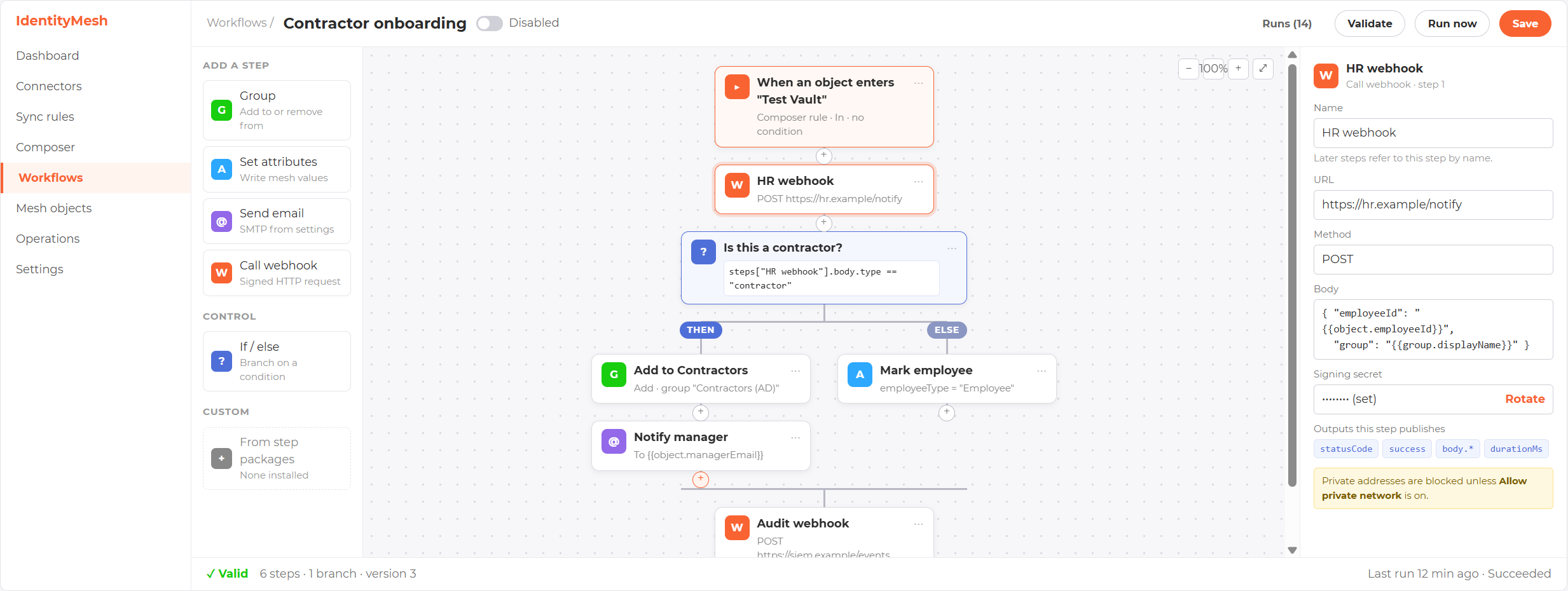
The workflow designer (preview rendering; some field names and expression syntax differ in the product)
New workflow and Edit on the Workflows page open a full-page designer. Drag steps from the palette on the left onto the canvas, or use the + button on any connection. Select a card to edit it in the properties panel on the right. The admin guide describes every control in its Workflows section.
Branches
An If/else branch sends a run down one of two paths. It sits between steps and holds a condition written in the same rules language as the workflow condition. The condition is evaluated when the run reaches the branch.
- If the condition is true, the steps in the Then arm run.
- If it is false, the steps in the Else arm run. An empty arm is allowed.
- When the chosen arm finishes, the run continues with the first step after the branch. Both arms rejoin there.
- Branches can be nested inside the arms of other branches, up to 5 deep.
- A workflow holds at most 100 steps and branches together.
If a branch’s condition cannot be evaluated, that is a retryable failure. The run waits and tries again on the normal schedule (1, 5, 15, 60 and 60 minutes, see Failure and retry), and becomes Failed after the fifth retry. While the branch is failed or waiting, an operator can use Skip step on it, which takes the Else arm (see Operator actions).
A condition can read the outputs of earlier steps, as in this example that continues only for contractors:
Equals(attr("steps.hrWebhook.body.type"), "contractor")Step outputs
Every step publishes a small set of outputs when it finishes. Later
branch conditions and templates read them as steps.<key>.<output>.
<key> is the step’s identifier, shown in the designer. It is derived
from the step’s name and you can edit it. Keys start with a letter or
underscore, contain only letters, digits and underscores, and are
unique within the workflow.
Use an output in a condition with attr("steps.<key>.<output>"), or in
any template field, such as an email subject or body, with double
braces:
Webhook answered {{steps.hrWebhook.statusCode}}| Step | Outputs |
|---|---|
| Add or remove from a group | changed, action, groupId, groupDisplayName, exported |
| Set attributes | written, count |
| Send email | recipients, count |
| Call a webhook | statusCode, success, durationMs, body (the response text) |
When a webhook answers with JSON, each value in the answer is also
published as body.<path>. Objects use dotted names and arrays use
numbers, so body.items.0.id is the id of the first item in items.
Some rules apply to every step:
- A step publishes at most 50 outputs, and each value is cut at 500
characters. When anything was dropped, an extra output named
_truncatedistrue. - A step that was skipped publishes nothing. A reference to one of its outputs reads as empty.
- The run detail page lists every step’s outputs and paints the path the run took through any branches.
Outputs are visible to everyone who can read runs. If a webhook’s answer carries secrets, those values are shown to them too, so do not point a webhook at an endpoint that returns credentials.
Failure and retry
A step that fails with a retryable error is attempted again after a delay. The delays are fixed:
| Retry | Wait before it |
|---|---|
| 1 | 1 minute |
| 2 | 5 minutes |
| 3 | 15 minutes |
| 4 | 60 minutes |
| 5 | 60 minutes |
After the fifth retry fails, or at once for a failure that cannot be retried, the run becomes Failed and shows the reason. That is about two hours and twenty minutes from first attempt to final failure. Every attempt keeps its own result, so you can see exactly which attempt failed and why.
Run statuses
| Status | Meaning |
|---|---|
| Queued | Waiting to be picked up. |
| Running | A step is executing. |
| Waiting | Between retry attempts. |
| Held | Stopped by the burst guard, waiting for an operator. |
| Completed | Every step succeeded. |
| Skipped | The condition was false. |
| Cancelled | Cancelled by an operator, or superseded, or the object is gone. |
| Failed | A step failed and will not be retried. Needs attention. |
Operator actions
These need the workflows.execute permission.
| Action | Available on | Effect |
|---|---|---|
| Retry | Failed | Starts the run again from the step that failed, with a fresh set of attempts. |
| Skip step | Failed, Waiting | Marks the current step skipped and continues with the next. When the step that failed is an If/else branch whose condition could not be evaluated, skipping takes the Else arm. |
| Cancel | Queued, Waiting, Failed, Held | Ends the run as Cancelled. |
| Release all / Cancel all | Held runs of one workflow | Releases the held runs to the queue, or cancels them all. |
| Run now against an object | A workflow | Starts a real run for a chosen object. A Composer rule workflow asks for a direction. An attribute-change workflow asks for pretend old and new values for each watched attribute, and needs at least one change. It sends the email, calls the webhook and writes the mesh exactly as a triggered run would, so the console asks you to confirm first. |
| Pause / Resume | All workflows | Stops runs being started or continued. Changes are still recorded, but changes older than 24 hours are not acted on after you resume. |
A Failed run stays flagged until someone retries, skips or cancels it. Cancelling is how you acknowledge a failure you do not intend to fix.
Interrupted steps
If the service restarts after a step did its work but before the result
was saved, that step is run again once its lease expires, about five
minutes later. Group and attribute steps are safe to repeat. An email
step may send the same email twice. A webhook may be delivered twice,
which is why every delivery carries X-IdentityMesh-Delivery.
Loops and bursts
Three guards stop a workflow from running away.
- Chain depth. A workflow that changes an attribute can move an object in or out of another Composer group, or change an attribute that another workflow watches, which can trigger another workflow. A chain deeper than the workflow’s limit stops, and the run that would exceed it is created as Failed with a message such as “Loop guard: workflow chain deeper than 5”.
- Rate per object. A workflow runs at most a set number of times for the same object in an hour. The next run is created as Failed with a message such as “Loop guard: more than 20 runs in an hour for this object”. This also catches a loop that passes through an import.
- Bursts. If a single workflow sees more than 500 events within 10 minutes, which happens when you change a rule’s criteria and press Evaluate, its runs are created as Held with a message such as “Burst guard: 512 events within 10 minutes” and nothing fires. The window slides, so a burst spread over several passes is still caught. Review the count, then use Release all or Cancel all for that workflow. A first import after you enable an attribute-change workflow can trip it.
Loop guard settings
The chain depth and the rate per object are set on each workflow, in the Loop guards section of the designer, and replace any fixed value. Each workflow can have its own limits.
| Setting | Range | Default |
|---|---|---|
| Max chain depth | 1 to 20 | 5 |
| Max runs per object per hour | 1 to 1,000 | 20 |
Existing workflows use the defaults. The guard messages show the numbers you configured. A workflow that watches the attribute its own step sets does not chain when the step writes the value that is already there. A workflow that flips a value back and forth stops at its depth limit. The burst threshold and window are not per workflow and are set under Tuning, below.
Operations page
The Operations page has a Workflows card.
| Card colour | Meaning |
|---|---|
| Red | At least one run is Failed. |
| Amber | Runs are retrying or Held, or the workflow worker has not reported for over three minutes while workflows are enabled. |
| Green | Nothing needs attention. |
| Unknown | Workflows are not enabled or are paused, or the install is not Enterprise. |
A red Workflows card makes the overall banner amber, not red, because a failed webhook is not a broken audit chain. The card links to the Runs tab filtered to Failed runs.
Retention
Run history is kept for 90 days by default. This is the
Retention.WorkflowRunDays setting, which sits with the other
retention settings; 0 keeps runs forever. Only Completed, Skipped and
Cancelled runs are removed, together with their step results. Failed
runs are never purged, so a failure nobody has acknowledged stays
visible. Cancel a failed run to let it age out.
The record of membership changes that workflows read is tidied automatically a few days after it has been processed. For the other retention windows see audit retention.
Settings → Workflows
Settings → Workflows is a tab on the Roles page, in the same group
as System. Anyone with the roles.read permission can open it, and
changing the switch needs roles.write. A user who can only view sees
the page with the switch disabled.
| Item | What it is |
|---|---|
| Allow inline scripts | Off by default. When it is off, a Run PowerShell script step cannot use a script typed into the designer, and a saved inline step fails validation and its runs fail without retrying. Turning it on lets anyone with workflows.write run script text as the service account, so leave it off unless you need it. The change is recorded in the administrator audit trail with who made it. Save applies it at once; no restart. |
| Scripts folder | Read-only. The folder the File source reads, C:\ProgramData\IdentityMesh\Scripts by default. |
| Per-run folder | Read-only. Where each running script gets its own temporary working folder. IdentityMesh removes it when the run ends. |
| Step packages | The custom step packages found in the steps folder, with each package’s version, publisher, and a status of Loaded or Rejected. A rejected package shows the reason. A Verification line says whether signatures are required and lists the allowed publishers. |
| Download Step SDK | Downloads the kit for building your own steps. The button is hidden when the server was installed without the kit. |
The Step packages table and the download button show only to users
who also have workflows.read. A hint under the table reminds you that
new packages are picked up when the service restarts. To build and
install a package, see Custom workflow steps.
If you leave the tab with an unsaved change to the switch, the console asks you to confirm.
Permissions and licence
| Permission | Allows |
|---|---|
workflows.read | View workflows, runs and status. |
workflows.write | Create, edit and delete workflows, validate them, and rotate secrets and headers. |
workflows.execute | Retry, skip, cancel, release held runs, run now, pause and resume. |
Built-in roles:
| Role | read | write | execute |
|---|---|---|---|
| Admin | yes | yes | yes |
| Operator | yes | no | yes |
| Viewer | yes | no | no |
| User | no | no | no |
Mesh workflows require the Enterprise tier. On any other tier the API answers 403 “Enterprise tier required” and the workflow worker does not run. Every create, edit, delete, secret rotation and run action is recorded in the administrator audit trail; the signing secret is never written to it.
The tables workflows need are created by the installer’s database step.
Tuning
These optional settings in the Admin API’s appsettings.json change
the worker’s limits. The defaults suit most installs.
| Setting | Default | Meaning |
|---|---|---|
Workflows:Parallelism | 4 | Runs executed at once, from 1 to 16. |
Workflows:TransitionMaxAgeHours | 24 | Changes older than this are never acted on. |
Workflows:BurstThreshold | 500 | Events for one workflow within the burst window before its runs are Held. |
Workflows:BurstWindowMinutes | 10 | The length of the sliding burst window, in minutes. |
Troubleshooting
- Nothing fires. Check that the workflow is enabled, that you have the Enterprise tier, that workflows are not paused, and that the Operations card shows a recent heartbeat. Then check the change happened after the workflow was enabled.
- Email fails at once. Configure a provider under Settings → Email, switch Send email on, and make sure it has a From address.
- Webhook fails with a private-network message. Tick Allow private network addresses on the step, or use a public HTTPS URL.
- Signature mismatch at the receiver. Verify against the raw bytes of the body, not a re-serialised copy, and use the newest secret.
- A set-attributes value keeps reverting. An inbound flow rule feeds that attribute; the next import writes the source’s value back.