
Mesh Workflows
Do something useful the moment an object enters or leaves a Composer group, a group whose members are set by a rule. A workflow can add them to another group, set attributes, send an email, or tell another system with a signed webhook. You build it on a visual canvas, with branches for the cases that need a different path.
From group change to action in three steps
Pick a trigger
Choose a Composer group, a group whose members are set by a rule, and a direction. The workflow runs when an object enters that group, or when it leaves. An optional condition can skip people it should not apply to.
Add steps
Add or remove the person from another group, set attributes on them, send an email, or call a webhook in another system. Steps run in order, one after another.
Let it run
Every change in membership starts one run. A step that fails for a temporary reason is retried after 1, 5, 15 and 60 minutes, then marked Failed. Every run and attempt is kept in the run history.
Four steps that cover the common cases
Joiners get their groups and their welcome email. Leavers lose access and your other systems hear about it.
Add or remove from a group
Put the person into any group in the mesh, or take them out of one a workflow added them to. The change reaches your directories on the next export.
Set attributes
Write values such as a job type or a flag onto the person. The editor warns you when an import also feeds that attribute, because the next import wins.
Send email
Email the person, their manager or a team mailbox through your own mail relay. Subject and body can include the person's details.
Call a webhook
Tell another system about the change with a signed HTTPS request. The receiver can check the signature to prove the request came from Identity Mesh.
The workflow designer
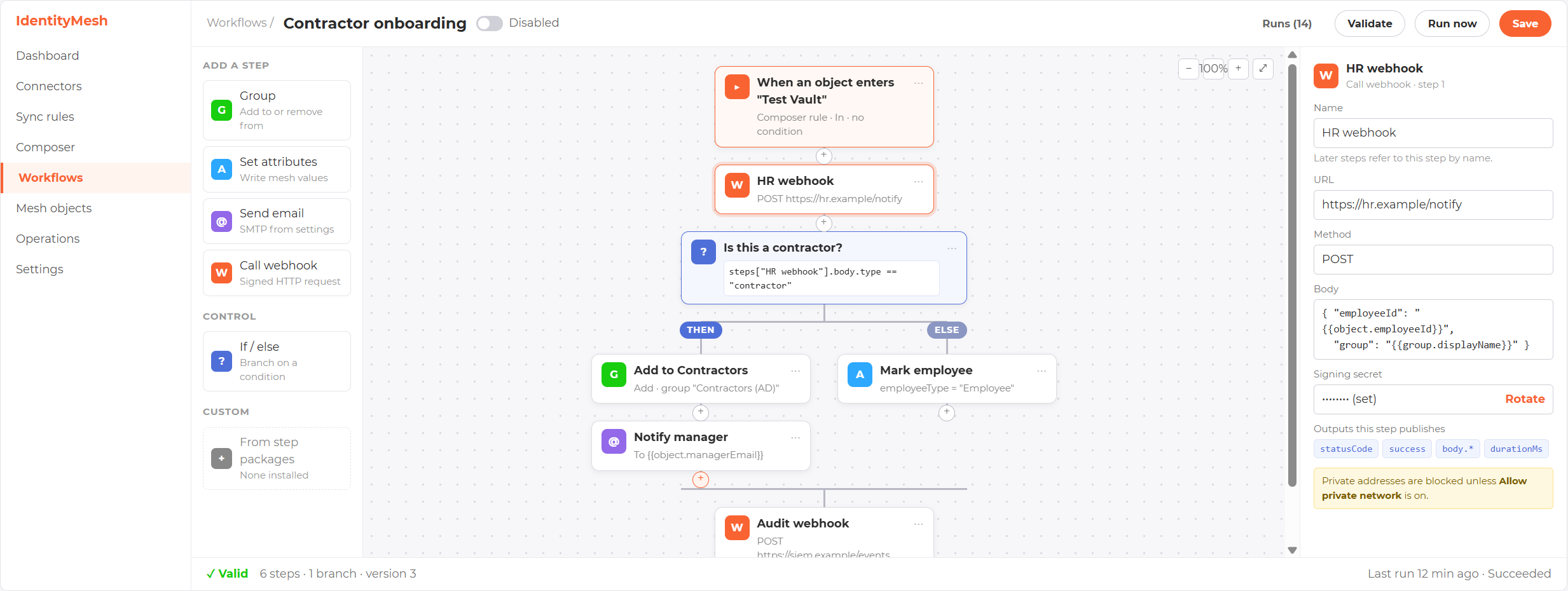
A full-page canvas with a palette of steps on the left and the selected step's settings on the right.
For the exact condition and value syntax, see the workflows guide.
A canvas you can read
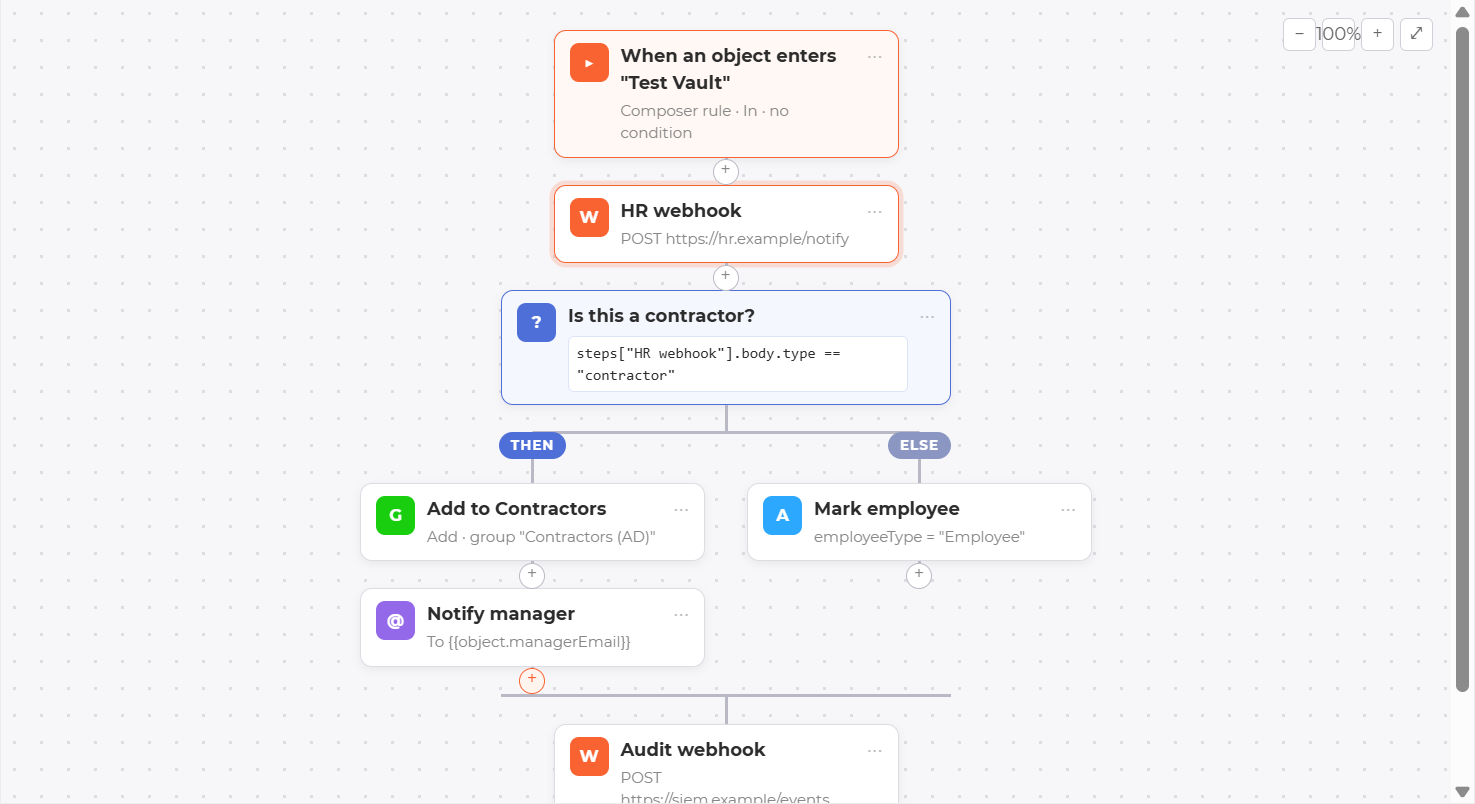
The trigger reads as a sentence, such as "When an object enters Contractors". Each step is a card below it. Drag steps from the palette, or use the + button on any connection to build the whole workflow from the keyboard.
If/else branches
A branch sends each run down one of two paths. Both paths join again after the branch. Branches can sit inside other branches.
Steps can use earlier results
Each step publishes a few results, such as the answer from a webhook. Later conditions, emails and webhooks can use them, so one system's answer can decide what happens next.
A properties panel with a value picker
Select a card to edit its settings on the right. A picker lists the person's attributes, the workflow's values and the results of earlier steps, so you never have to remember a name.
Undo, redo and checks as you go
Undo and redo any change. A status bar says whether the workflow is valid, and any problem shows as a badge on the step that has it.
See the path a run took
The run detail page lists the result of every step and highlights the branch each run followed.
Safe by default
A workflow acts on real people and real systems, so the guard rails are on from the start.
- Every webhook request is signed with a secret that only Identity Mesh and your receiver hold. It is shown once, and you can replace it at any time.
- Webhooks cannot reach private network addresses unless you allow it on that step, and every address is checked again on every attempt.
- Secrets, such as a webhook's authorization header, are stored safely and only ever shown as a mask.
- Sensitive attributes are never sent in a webhook, are shown as a placeholder in email, and cannot be written by a workflow.
- Guards stop runaway workflows: chains of workflows have a depth limit, each person has an hourly run limit, and a large burst of runs is held for an operator to release.
- Every change to a workflow and every operator action is recorded in the administrator audit trail.
Turn group changes into finished work
See a joiner workflow built and run against your own directory.